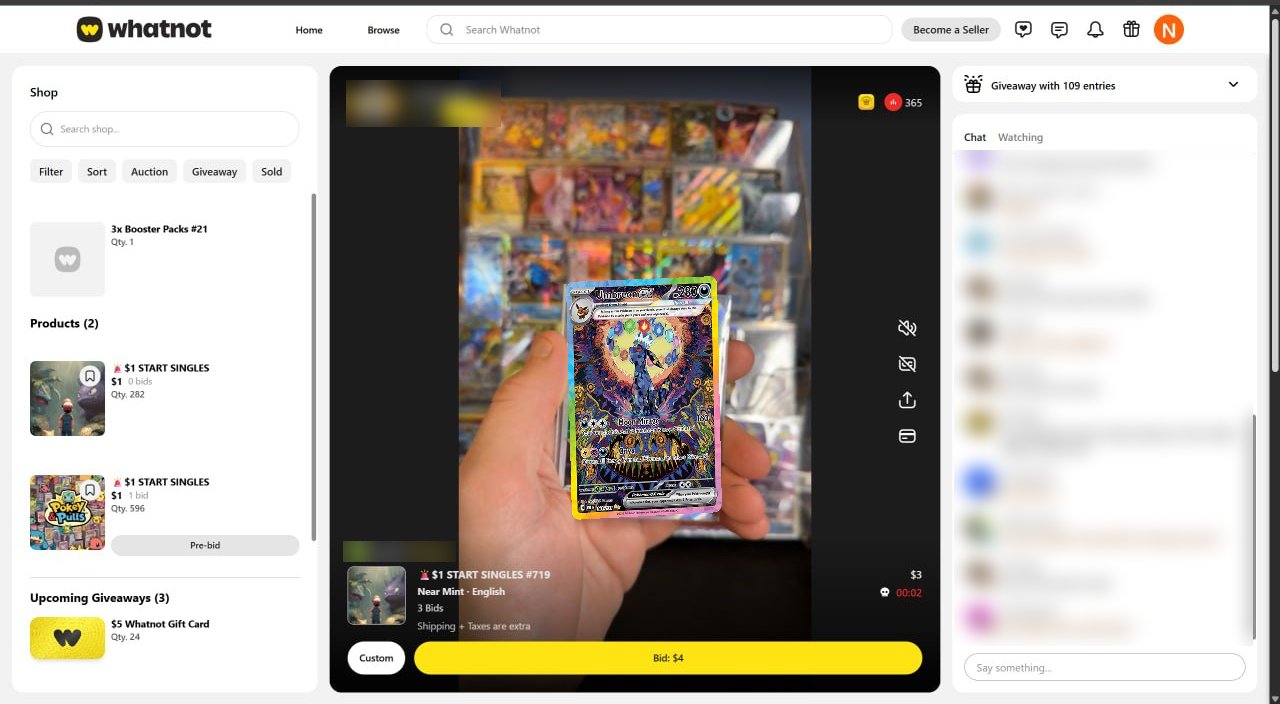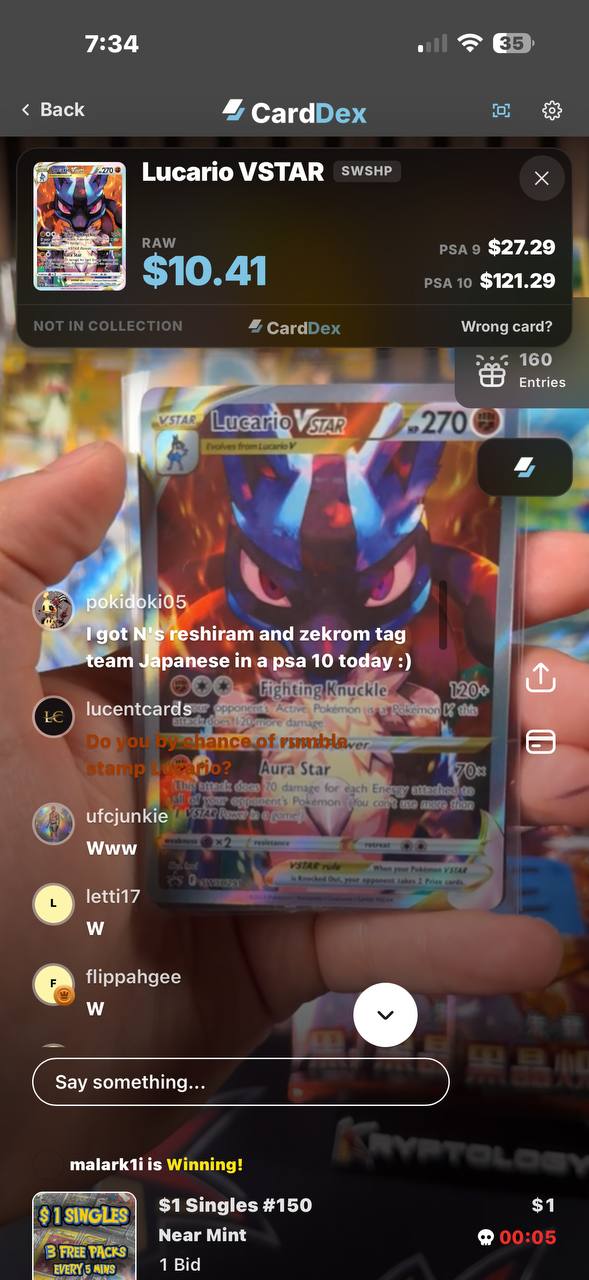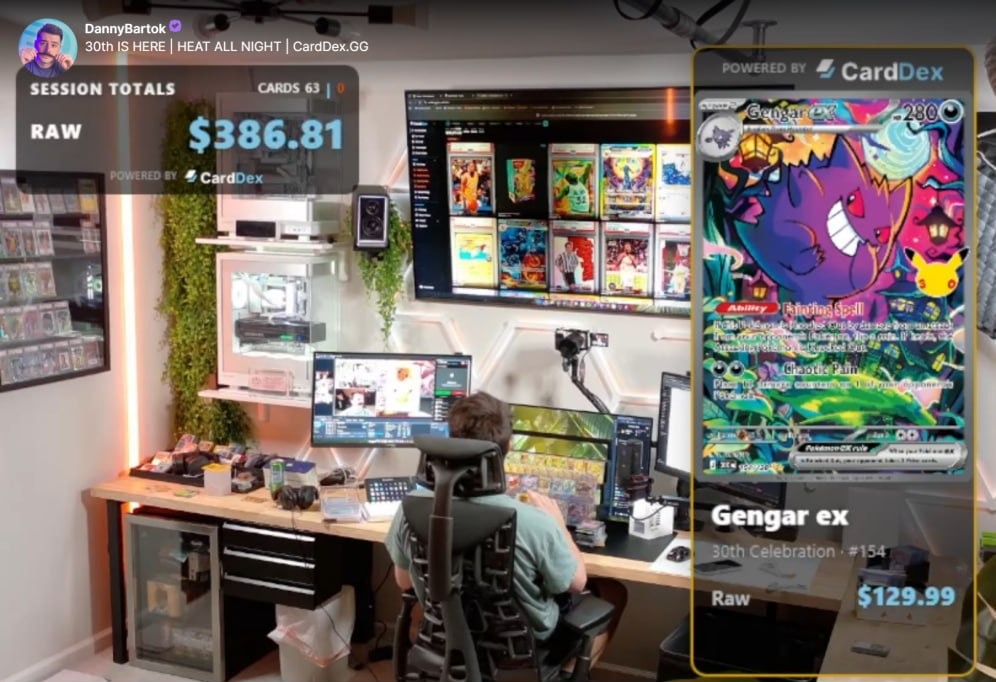
When you pull a hit on stream, chat wants one thing: "what's it worth?" Typing it into a price site mid-break kills the moment. This guide sets up CardDex Live so the price shows up on your overlay a second or two after you hold the card up — with you approving each one so nothing wrong hits the stream.
How it works
CardDex Live is a small desktop app. It watches a zone in your camera feed. You hold a card there, press Snap, and it identifies the exact print and pulls the live market price. You press Approve (or let a short countdown do it) and the card slides onto your overlay. The overlay itself is just a web page, so any streaming tool that can show a web page can show it.
Setup
Install CardDex Live
Download it from carddex.gg/stream for Mac or Windows. Open it and a QR code appears.
Sign in with your phone
Scan the QR with your phone (already signed in to CardDex) and tap Approve. That links the computer to your account. Pro is checked here.
Pick your card zone
In the app, drag the box over the part of your camera view where you hold cards. Keep it in good light and fill the box with the card.
Add the overlay to OBS
In OBS: Sources → + → Browser. Paste your overlay URL from carddex.gg/settings/overlay, set the width and height, done. Streamlabs and TikTok LIVE Studio take a web page as a source the same way.
Set your hotkeys
Snap is F13 by default. F13–F18 do not clash with other apps, which makes them perfect for a Stream Deck. Change them in Settings if you like.
Snap, approve, go
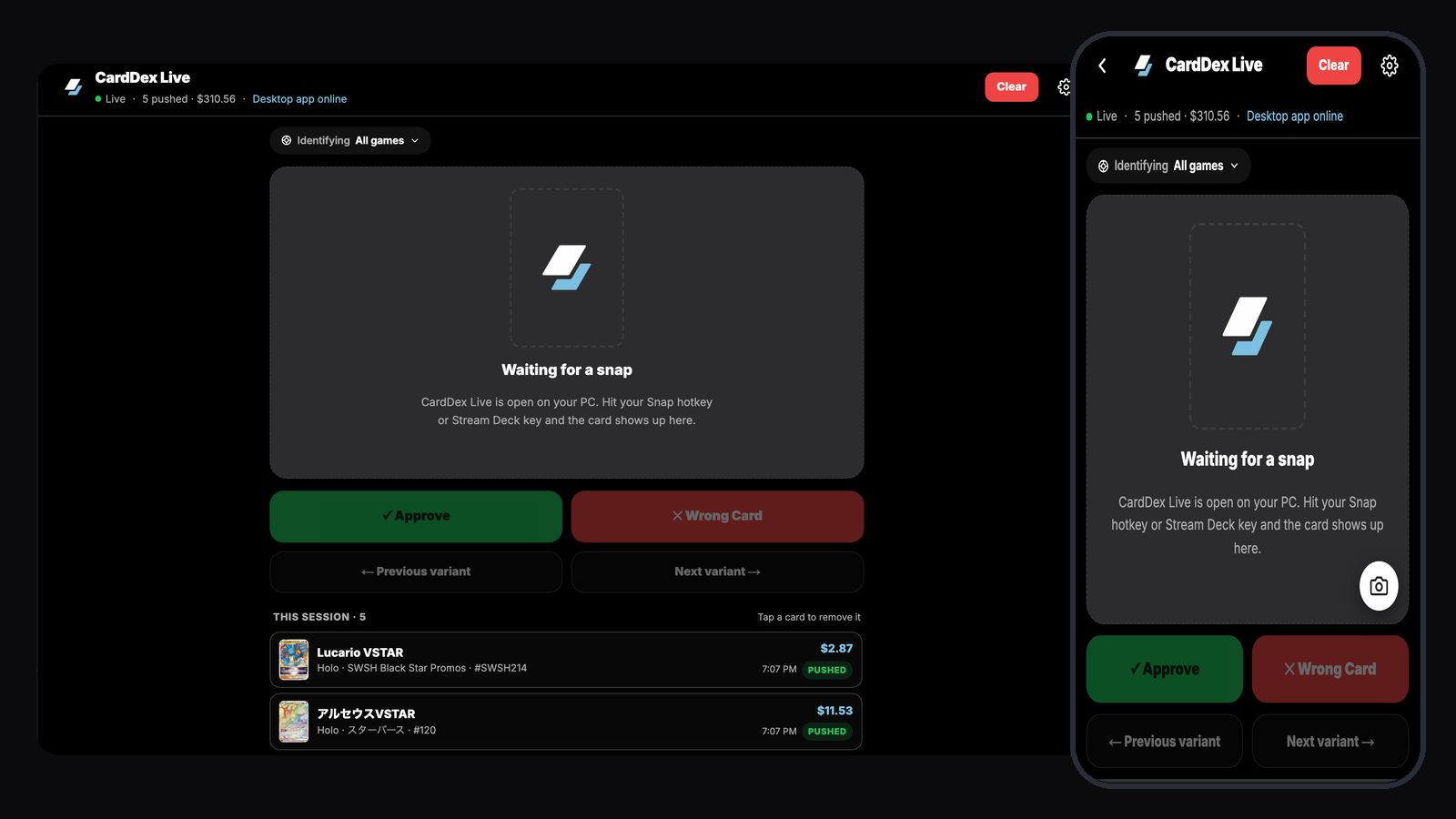
Hold the card in the zone, press Snap, glance at the dashboard, press Approve. Name, set, number and price land on the overlay, and your session total ticks up.
If it picks the wrong card
It happens with reverse holos and alternate prints. The dashboard shows the closest matches next to the card — click the right one before you approve, or hit Wrong Card and snap again. Nothing goes to the overlay until you say so.
Approving from anywhere
- Desktop hotkey while you are at the keyboard.
- Your phone — the same dashboard opens on it, handy when you are standing at a table.
- Inside OBS as a dock, so you never leave the streaming window.
Free download for Mac and Windows. Signing in requires CardDex Pro.